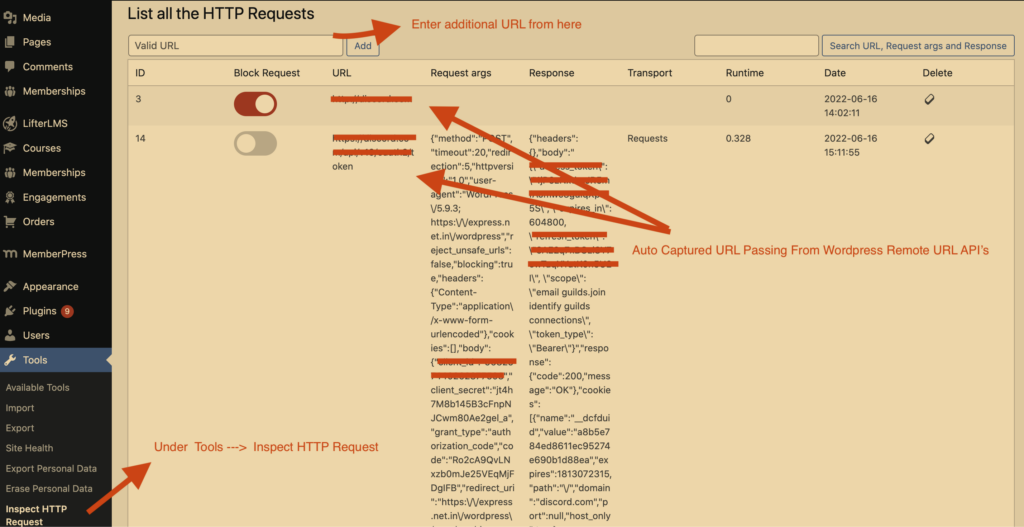
Step-by-Step Guide for Inspect HTTP Requests WordPress Plugin
Introduction
Inspect HTTP Requests is a powerful WordPress plugin developed by ExpressTech Software Solutions Pvt Ltd.
This plugin allows you to monitor all HTTP requests made via WP HTTP methods, such as wp_remote_get and wp_remote_post.
Additionally, it provides a convenient option to block any request with just a click of a button.
Follow this step-by-step guide to effectively install, configure, and utilize the features of the Inspect HTTP Requests plugin.
Installing the plugin
Navigate to your WordPress Dashboard.
Go to the “Plugins” section.
Click on “Add New.”
In the search bar, type “Inspect HTTP Requests.”
Locate the “Inspect HTTP Requests” plugin by ExpressTech Software Solutions Pvt Ltd.
Click on “Install Now” and then “Activate” the plugin.
Accessing the Plugin Settings:
Once activated, go to the WordPress Dashboard.
Find the “Tools” menu item in the left sidebar.
Hover over “Tools” and select “Inspect HTTP Requests” from the submenu.
Settings Page Overview:
The settings page is accessible through the WordPress admin menu under “Tools -> Inspect HTTP Requests.”
On this page, you can view a list of all HTTP requests, search for specific requests, add validation for valid URLs, and perform actions such as blocking requests and deleting entries.
1 - Filtering and Search:
Search Box:
Use the search box to filter HTTP requests based on URL, request arguments, and response data.
Input specific search terms in the “Search URL, Request args and Response” field.
Click the “Search” button to apply the filter.
Validation for Valid URL:
Add validation for a valid URL by entering the URL in the “Valid URL” field.
Click the “Add” button to apply the validation.
2- HTTP Requests Table:
The table provides an organized view of HTTP requests with the following columns:
ID: The unique identifier for each request.
Block Request: Allows blocking a specific request.
URL: Displays the URL associated with the request.
Request Args: Shows the arguments of the HTTP request.
Response: Displays the response data.
Transport: Indicates the transport method used.
Runtime: Shows the runtime of the request.
Date: Displays the date of the request.
Delete: Allows deleting a specific request entry.
3 - Interacting with HTTP Requests:
Blocking a Request:
To block a specific request, click on the entry in the table and use the “Block Request” button.
Deleting a Request:
Use the “Delete” column to remove a specific request from the list.
Conclusion:
The settings page of the Inspect HTTP Requests plugin offers a user-friendly interface for managing and analyzing HTTP requests in WordPress. Utilize the search and filtering options, and take advantage of the ability to block or delete specific requests for efficient website optimization and debugging.
For additional details, refer to the inline comments within the provided PHP file.
We use cookies on our website to give you the most relevant experience by remembering your preferences and repeat visits. By clicking “Accept All”, you consent to the use of ALL the cookies. However, you may visit "Cookie Settings" to provide a controlled consent.
This website uses cookies to improve your experience while you navigate through the website. Out of these, the cookies that are categorized as necessary are stored on your browser as they are essential for the working of basic functionalities of the website. We also use third-party cookies that help us analyze and understand how you use this website. These cookies will be stored in your browser only with your consent. You also have the option to opt-out of these cookies. But opting out of some of these cookies may affect your browsing experience.
Necessary cookies are absolutely essential for the website to function properly. These cookies ensure basic functionalities and security features of the website, anonymously.
Cookie
Duration
Description
cookielawinfo-checbox-analytics
11 months
This cookie is set by GDPR Cookie Consent plugin. The cookie is used to store the user consent for the cookies in the category "Analytics".
cookielawinfo-checbox-functional
11 months
The cookie is set by GDPR cookie consent to record the user consent for the cookies in the category "Functional".
cookielawinfo-checbox-others
11 months
This cookie is set by GDPR Cookie Consent plugin. The cookie is used to store the user consent for the cookies in the category "Other.
cookielawinfo-checkbox-necessary
11 months
This cookie is set by GDPR Cookie Consent plugin. The cookies is used to store the user consent for the cookies in the category "Necessary".
cookielawinfo-checkbox-performance
11 months
This cookie is set by GDPR Cookie Consent plugin. The cookie is used to store the user consent for the cookies in the category "Performance".
viewed_cookie_policy
11 months
The cookie is set by the GDPR Cookie Consent plugin and is used to store whether or not user has consented to the use of cookies. It does not store any personal data.
Functional cookies help to perform certain functionalities like sharing the content of the website on social media platforms, collect feedbacks, and other third-party features.
Performance cookies are used to understand and analyze the key performance indexes of the website which helps in delivering a better user experience for the visitors.
Analytical cookies are used to understand how visitors interact with the website. These cookies help provide information on metrics the number of visitors, bounce rate, traffic source, etc.
Advertisement cookies are used to provide visitors with relevant ads and marketing campaigns. These cookies track visitors across websites and collect information to provide customized ads.